Everyday life · England
Ad — Using Alexa
Your browser or device provides the reading voice.
Alexa is a voice assistant on devices such as an Amazon Echo.
It can help you remember things, contact people and ask questions.
Getting started
You can speak to Alexa.
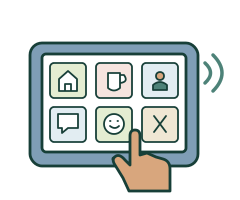
Some Alexa devices also have a screen.
Ask someone you trust to help you set it up.
You need power and an internet connection.
You also need an Amazon account.
Ask for help with the Alexa app.
Reminders
Say: “Alexa, remind me to get ready at 9 am.”
Listen to check that Alexa has the right time.
You can set reminders that repeat.
For example, a reminder to call someone each Monday.
Try one reminder together first.
Check where the reminder will play.
Check that you can hear it.
Have another plan for important things you must remember.
Keeping in touch
Alexa can help you call people.
You need to set up calling first.
Practise with someone you know.
Say: “Alexa, call Sam.”
Use the name saved in your contacts.
Check that Alexa calls the right person.
To answer a call, say: “Alexa, answer.”
To end a call, say: “Alexa, hang up.”
Some devices let you make video calls.
Some let you send Alexa messages.
Check what works with your contact’s device.
Choose who can connect
Drop In is a different way to talk.
When it is switched on, it can connect without you answering.
It can share sound and sometimes video.
You choose whether to use Drop In.
Ask who would have access.
You can leave it switched off.
Finding information
Try: “Alexa, what is the weather today?”
You can ask what a word means too.
Check important answers with someone who can help.
Make Alexa easier to use
Say: “Alexa, speak slower.”
This makes Alexa’s replies slower.
Adaptive Listening is a setting.
It gives you more time to finish speaking.
Ask for help to try it.
Some screens have a feature called Tap to Alexa.
You can touch buttons or type instead of speaking.
Ask to try it if this would help you.
Your privacy
Choose who helps with your settings.
You can switch the microphone off.
Alexa cannot hear your voice commands while it is off.
Check costs before agreeing to a paid service.
Ask for help with shopping settings if needed.
Getting urgent help
Alexa’s usual calling feature cannot call 999 or 112.
Keep another way to contact emergency services.
Plan what to do if the internet or power fails.
What you can do next
Choose one thing you want Alexa to help with.
Practise it with someone you trust.
Find help with Alexa settings Web pageThis link opens another website.
It may use harder words.
More useful links
- Amazon: setting reminders Web page
Voice and app reminders, repeat times and choosing the device.
- Amazon: setting up calls and messages Web page
Registering Alexa Communication and choosing contact permissions.
- Amazon: Adaptive Listening Web page
Giving you more time to finish speaking.
- Amazon: Tap to Alexa Web page
Using on-screen tiles or typing instead of speaking.
- Amazon: turning Drop In off Web page
Device controls for Drop In.
- Amazon: reviewing Alexa history Web page
Reviewing and deleting saved history.
These links open other websites.
They may use harder words.
Products you can explore
You can look at products on a separate page of this website.
Money earned from these links will help maintain Clearer Support and the My Life My Say app, and provide free advocacy.
Ad — Using Alexa for reminders, communication and information
Simple ways to remember tasks, keep in touch and ask questions using an Amazon Echo.
People with learning disabilities, families and supporters · England
What Alexa is and what you need
Alexa is Amazon’s voice assistant. An Echo is a device you can speak to; an Echo Show also has a screen. For these features, you normally need power, a working internet connection, an Amazon account and the Alexa app for setup and settings. Ask for help if needed. Features and menu names vary by device, account, software and country. This guide does not require Alexa+ features.
Start with one useful reminder
Choose something you want to remember. For example, say: “Alexa, remind me to get ready at 9 am every Monday.” Listen to the time Alexa confirms and correct any mistake. You can also create or change reminders in the Alexa app under More, then Reminders. A reminder normally sounds on the device where you set it; you can choose the device in the app. Practise with a reminder due in a few minutes, at a volume you can hear.
Choose prompts that work for you
Examples include getting ready for an appointment, feeding a pet or making a planned phone call. A timer counts down a length of time; a reminder says what you planned to do. Phone reminder notifications need to be enabled. A prompt does not show that the task was completed. If you use medicine reminders, keep following your agreed medicine instructions and support arrangements. Agree another way to remember essential tasks if you miss an alert or the device is unavailable.
Set up ordinary calls and messages
In the Alexa app, open More, then Communicate, and follow the setup steps, including verifying your mobile number. You can choose whether to import phone contacts. Check the intended contact and practise together. Supported Echo devices and the Alexa app can call or send Alexa messages to other Alexa Communication users. A compatible Echo Show can support video calls. Ordinary Alexa messages are different from phone text messages; do not assume every contact can receive them.
Practise answering and ending a call
Try “Alexa, call Sam”, using the saved name of someone who agreed to a practice call. For an incoming ordinary call, say “Alexa, answer”. To finish, say “Alexa, hang up”. Check that Alexa has selected the correct person. Calls to some ordinary phone numbers are supported, but availability and number restrictions apply.
Understand Drop In before turning it on
Drop In works like an intercom. Once permitted, it can connect automatically without you answering. It may carry sound and, on compatible screens, video. Agree whether you want it, who can use it and which rooms are suitable. Household permissions can include devices at another address on the same household account. You can use ordinary calls and leave Drop In off. In the app, select your Echo device, Settings, Communications, then Drop In to turn it off.
Ask everyday questions
Try “Alexa, what is the weather today?” or “Alexa, what does appointment mean?” Alexa can also give news and calendar information where the relevant features are set up. Ask for slower speech if needed. Check important answers with the original service or someone qualified to help; a confident answer can be wrong or out of date. Do not rely on a spoken answer alone for health, money or legal decisions.
Make speaking and listening easier
Say “Alexa, speak slower” to slow its replies. Adaptive Listening gives you extra time to finish your own words: in the app, look under More, Settings, Accessibility and Adaptive Listening Mode, then choose the device. These are different settings. Try them at your pace, in the room where you will use Alexa. Keep a short list or picture card of useful phrases if that helps.
Use the screen if speaking is difficult
On compatible Echo devices with a screen, Tap to Alexa lets you use on-screen tiles or type a request with Ask Alexa. Look in the device’s Accessibility settings. Ask to try the controls before choosing a device. Check the volume, screen and input method work for you. A smart speaker is not a replacement for a communication aid you need.
Choose privacy and spending settings
Decide what help you want with your account and who may change settings. Reminders spoken aloud can be heard by others nearby, so choose their wording carefully. The microphone-off button stops the device hearing voice requests until you turn it on again. Where fitted, use the camera cover when you want privacy. In the app, More, Alexa Privacy and Review Alexa History let you inspect and delete saved history. Ask for help to check shopping permissions and any paid services before agreeing to charges.
Keep another way to get help
Standard Alexa Communication cannot call 999 or 112. Keep a mobile, landline or another agreed emergency-contact method available. An Alexa emergency contact is a chosen person, not an emergency service, and they may not answer. These communication features need a working connection. Agree what to do during a power or internet failure. Technology should support the help you need; changing care arrangements requires a separate discussion and assessment.
Make a plan with someone you choose
Start with one reminder, one contact and one question. Practise correcting mistakes, stopping a reply and ending a call. Agree who can help with setup, updates or problems. Review whether the device helps you and whether you still want each feature. Supporters should explain choices and avoid enabling automatic access simply because it is convenient for them.
Words you could use
“I would like help to use Alexa. Please practise one reminder and one call with me, and help me choose my privacy settings.”
More useful links
- Amazon: setting reminders Web page
Voice and app reminders, repeat times and choosing the device.
- Amazon: setting up calls and messages Web page
Registering Alexa Communication and choosing contact permissions.
- Amazon: Adaptive Listening Web page
Giving you more time to finish speaking.
- Amazon: Tap to Alexa Web page
Using on-screen tiles or typing instead of speaking.
- Amazon: turning Drop In off Web page
Device controls for Drop In.
- Amazon: reviewing Alexa history Web page
Reviewing and deleting saved history.
These links open other websites.
They may use harder words.
Products you can explore
You can look at products on a separate page of this website.
Money earned from these links will help maintain Clearer Support and the My Life My Say app, and provide free advocacy.
Where the information comes from
Links checked 6 November 2026.
These links open other websites.
They may use harder words.
- Amazon: setting reminders Web page
Voice and app reminders, repeat times and choosing the device.
- Amazon: reminder notifications on your phone Web page
Allowing reminder notifications in the Alexa app.
- Amazon: setting up calls and messages Web page
Registering Alexa Communication and choosing contact permissions.
- Amazon: Alexa communication questions Web page
Calls, messages, answering, hanging up and emergency-call limits.
- Amazon: how Drop In works Web page
Optional automatic connections and household or contact permissions.
- Amazon: turning Drop In off Web page
Device controls for Drop In.
- Amazon: Alexa accessibility in the UK Web page
Touch controls, listening time and speaking speed.
- Amazon: slower speech Web page
UK voice commands and everyday information examples.
- Amazon: Adaptive Listening Web page
Giving you more time to finish speaking.
- Amazon: Tap to Alexa Web page
Using on-screen tiles or typing instead of speaking.
- Amazon: microphone controls Web page
Turning microphones off and the effect on voice commands.
- Amazon: reviewing Alexa history Web page
Reviewing and deleting saved history.
- Amazon: Echo setup requirements Web page
Amazon account, power, internet and the Alexa app.
- Amazon: emergency contacts Web page
Calling a chosen contact is not an emergency response service.
A page for you to fill in
You can type your answers and download a copy.
You can also print a page to write or draw on.
Someone you trust can help you.