Everyday life · England
Help with phones and computers
Your browser or device provides the reading voice.
This guide is for people in England.
You can learn to use technology with support.
Learn to use your device
Choose something you want to do.
You might want to contact a friend or find information.
Ask someone you trust to help you practise.
Take one step at a time.
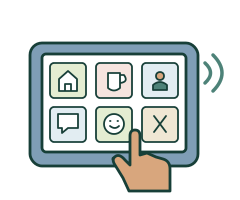
Your device may have settings that make it easier to use.
Ask for help to try them.
Tell a service if you cannot use its website or app.
Ask about another way to contact them.
Internet safety and privacy
Your personal information is private.
Agree what help someone can give you.
Ask for help to keep your accounts secure.
Do not give passwords to someone who contacts you unexpectedly.
Some messages try to trick people.
Stop and ask for help if a message pressures you to pay or share information.
Tell someone you trust if something goes wrong.
You can get help without being blamed.
Friends, games and choices
Online friendships and games can be enjoyable.
Take time to get to know people.
Check who can see your information and contact you.
Ask before sharing someone else’s photograph.
Learn how to block someone and report a problem.
You can ask a trusted person to help.

A free game may still ask you to buy things.
Check what costs real money before you agree.
Agree support that helps you keep doing things you enjoy.
Ask for a review if people restrict your internet use.
What you can do next
Ask for help with one thing you want to learn.
Tell your supporter what works for you.
Find help with digital skills Web pageLocal serviceThis link opens another website.
It may use harder words.
More useful links
- Mencap: internet and online safety — Easy Read Web pageEasy Read
Pictures and clear words about fake profiles, false information, privacy settings and keeping personal details safe.
- Find digital skills support Web pageLocal service
Local hubs and free Learn My Way lessons.
- Adjust your device with AbilityNet Web page
Find My Computer My Way and personal technology support.
- Spot and report scams Web page
Official advice if a message or call seems suspicious.
- Mencap: social media in Easy Read Web pageEasy Read
Pictures and short text about privacy, posting and unwanted contact.
- Mencap: bullying online Web page
Recognising bullying, blocking, reporting and finding support.
- Get Safe Online: online gaming Web page
Accounts, downloads, chats and costs. Uses longer text.
These links open other websites.
They may use harder words.
Using phones, computers and online services
Build digital skills, enjoy online friendships and games, and get support with privacy, spending and online safety.
People and supporters in England · Skills and access needs vary
Choose a useful first step
You might want to video-call a friend, listen to music, find information or use an online service. Practise one task at a time with someone you trust. Good Things Foundation can help you find local Digital Inclusion Hubs and its free Learn My Way lessons. Check what local help is available with devices, data or skills.
Make the device easier to use
Try suitable text size, contrast, read-aloud, captions or input settings. AbilityNet's My Computer My Way explains built-in adjustments for different devices. Ask for help to try settings and keep those that work for you. A communication aid and general internet access may involve different assessments and support; do not assume one device meets every need.
Keep access to services possible
Tell the service if its app, website or form is difficult to use. Ask for accessible information, support or another contact route. NHS guidance says digital services should complement non-digital support. Needing help online should not mean losing the chance to speak with a service. Explain what would make the task manageable.
Agree privacy and account access
Choose what help you want and who can see information. Supporters should explain what they are doing and avoid taking over without the appropriate authority. For NHS services, ask the GP surgery about authorised family or carer access, sometimes called proxy access. The surgery checks the arrangements and can change or remove access. Do not assume being a relative gives unrestricted access.
Protect your accounts
Use a strong password and a separate one for email. Ask about a password manager and two-step verification: an extra check when signing in. Keep devices and apps updated. Make security arrangements you can use, with support where needed. Do not give passwords or security codes to someone who contacts you unexpectedly.
Pause if something feels wrong
Scams may pretend to come from a trusted person or service and pressure you to act. Stop before clicking links, paying or sharing details. Check through a contact method you found independently. Ask a trusted person for help and use NCSC reporting guidance. A mistake is a reason to get support, not to blame someone or automatically remove their internet access.
Enjoy online friendships and games
Online contact can help you share interests, learn and have fun. Choose the apps, groups or games you enjoy and check their age and account rules. Ask for accessible help with settings and controls. Someone’s online name or photograph may not show who they really are. Take time to build trust and plan support before meeting an online contact in person.
Choose who can contact you
Explore settings for private accounts, group invitations, location sharing and messages. Practise how to mute, leave a group, block a contact and report a problem on the actual app you use. Blocking can stop contact from that account but may not prevent someone creating another. You do not have to reply to unwanted messages or keep a conversation going to be polite.
Photographs, private messages and consent
Ask before posting photographs or personal information about someone else, and respect a refusal. A person agreeing to one photograph does not mean agreeing to every use. Explain who may see a post; other people can copy or share it. You can ask a service or person to remove an unwanted image. If intimate images or threats are involved, get help rather than forwarding the images to prove what happened.
Check what a game or app costs
A free download can include purchases or subscriptions using real money. Check the price, repeat payments and how to cancel before agreeing. Decide a spending plan you understand, and consider purchase confirmation settings or removing saved payment details if you want this. Review receipts with support where needed. If a charge is unexpected, contact the service and your payment provider promptly; a refund is not guaranteed.
Get help with bullying or pressure
If messages frighten or upset you, pause and contact someone you trust. Report unwanted content through the service’s reporting tools and ask for help keeping a record of account names, dates and what happened. Do not download or share sexual images of children. Report threats or blackmail to the police; use 999 for immediate danger. The safeguarding and abuse guides explain other help routes.
Support should help you stay involved
Discuss safer ways to keep doing what you enjoy, such as accessible teaching, agreed check-ins or adjusted settings. Supporters should explain what they do and respect privacy. A mistake or learning disability is not, by itself, a reason to remove all internet access. Any proposed restriction needs an individual, lawful basis and review; use the rights and decision-making guides if there is disagreement.
Words you could use
“I want help using technology for this task. Please explain the choices, respect my privacy and help me practise at my own pace.”
More useful links
- Mencap: internet and online safety — Easy Read Web pageEasy Read
Pictures and clear words about fake profiles, false information, privacy settings and keeping personal details safe.
- Find digital skills support Web pageLocal service
Local hubs and free Learn My Way lessons.
- Adjust your device with AbilityNet Web page
Find My Computer My Way and personal technology support.
- Spot and report scams Web page
Official advice if a message or call seems suspicious.
- Mencap: social media in Easy Read Web pageEasy Read
Pictures and short text about privacy, posting and unwanted contact.
- Mencap: bullying online Web page
Recognising bullying, blocking, reporting and finding support.
- Get Safe Online: online gaming Web page
Accounts, downloads, chats and costs. Uses longer text.
These links open other websites.
They may use harder words.
Where the information comes from
Links checked 1 November 2026.
These links open other websites.
They may use harder words.
- Good Things Foundation: finding digital support Web pageLocal service
Local hubs and free beginner learning.
- AbilityNet: technology support and information Web page
Individual device adjustments and support.
- NHS England: inclusive digital healthcare Web page
Accessible digital services alongside non-digital support.
- NHS: family and carer access Web page
Authorised access to another person's NHS services.
- NCSC: staying secure online Web page
Passwords, updates and two-step verification.
- NCSC: spotting scam messages and calls Web page
Recognising pressure, checking contacts and reporting scams.
- Mencap: staying safe on social media Web pageEasy Read
Privacy, sharing personal information, posting and saying no.
- Mencap: bullying online Web page
Blocking, reporting, unwanted images, threats and support without blame.
- Get Safe Online: online gaming Web page
Game accounts, downloads, online contacts and hidden costs.
- CQC: dignity and respect Web page
Privacy, autonomy, community involvement and individual preferences in care.